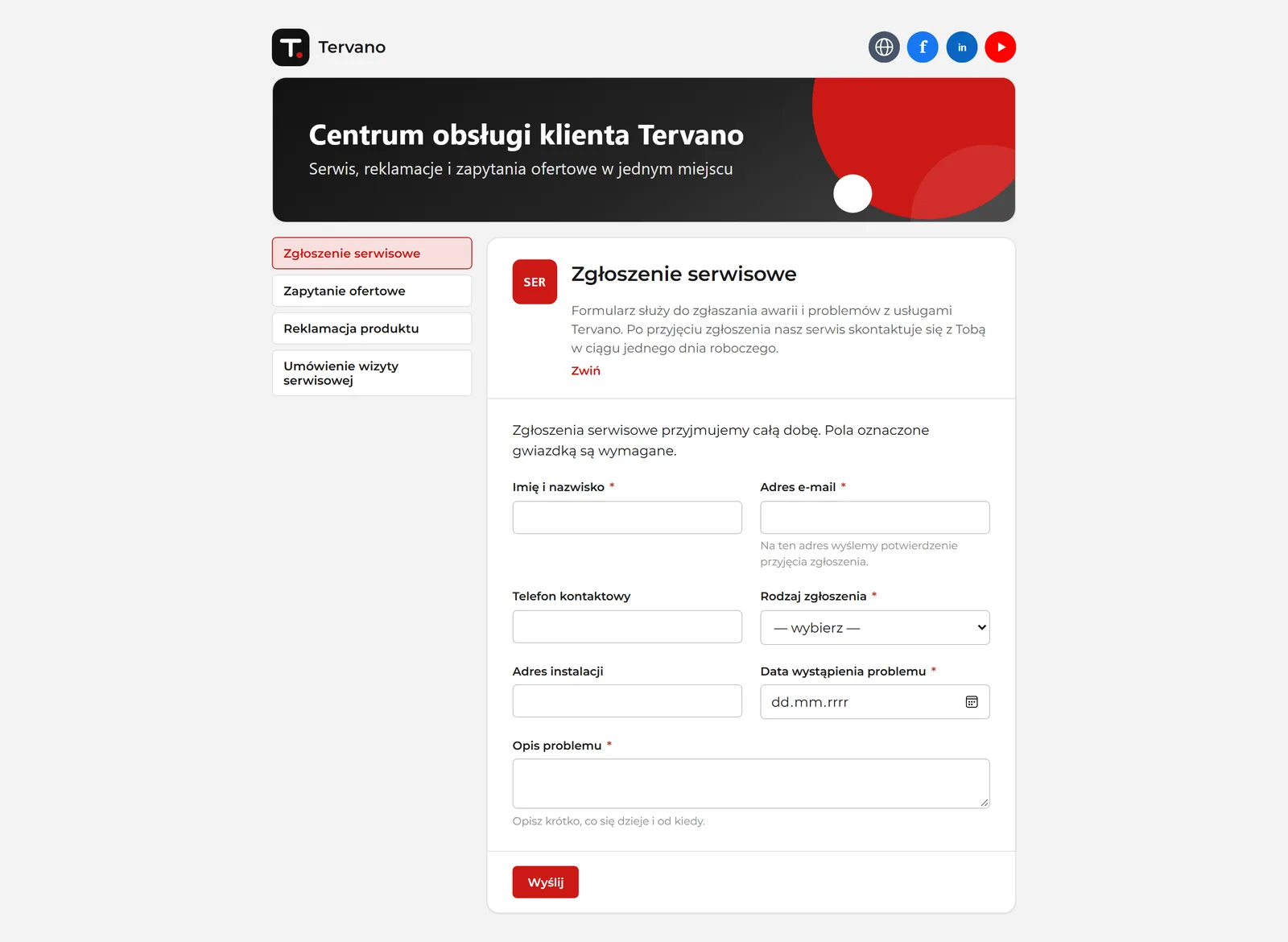
What the company gains
A submission without retyping
A submitted form creates a case directly in AMODIT at the selected process stage.
A form generated from the process definition
Fields, selection lists, required settings, and validation come from the AMODIT process, so the form does not have to be recreated from scratch.
Only the right fields
An external user sees only the fields intended for that person at the selected stage. Other fields are not included in the form or the data sent.
Browser-based configuration
Set the layout, content, validation, and appearance by dragging elements, without writing code.
Consistent branding
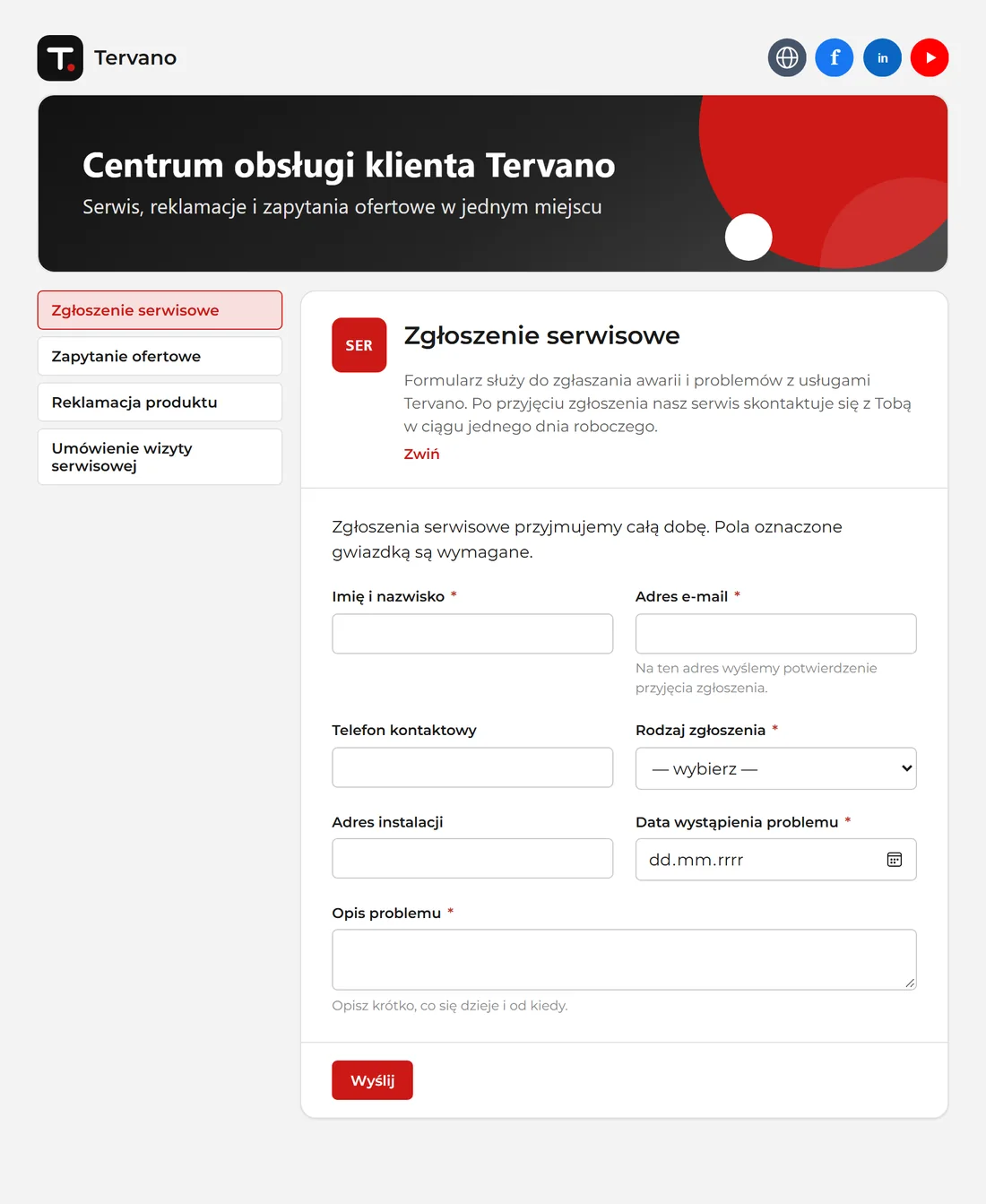
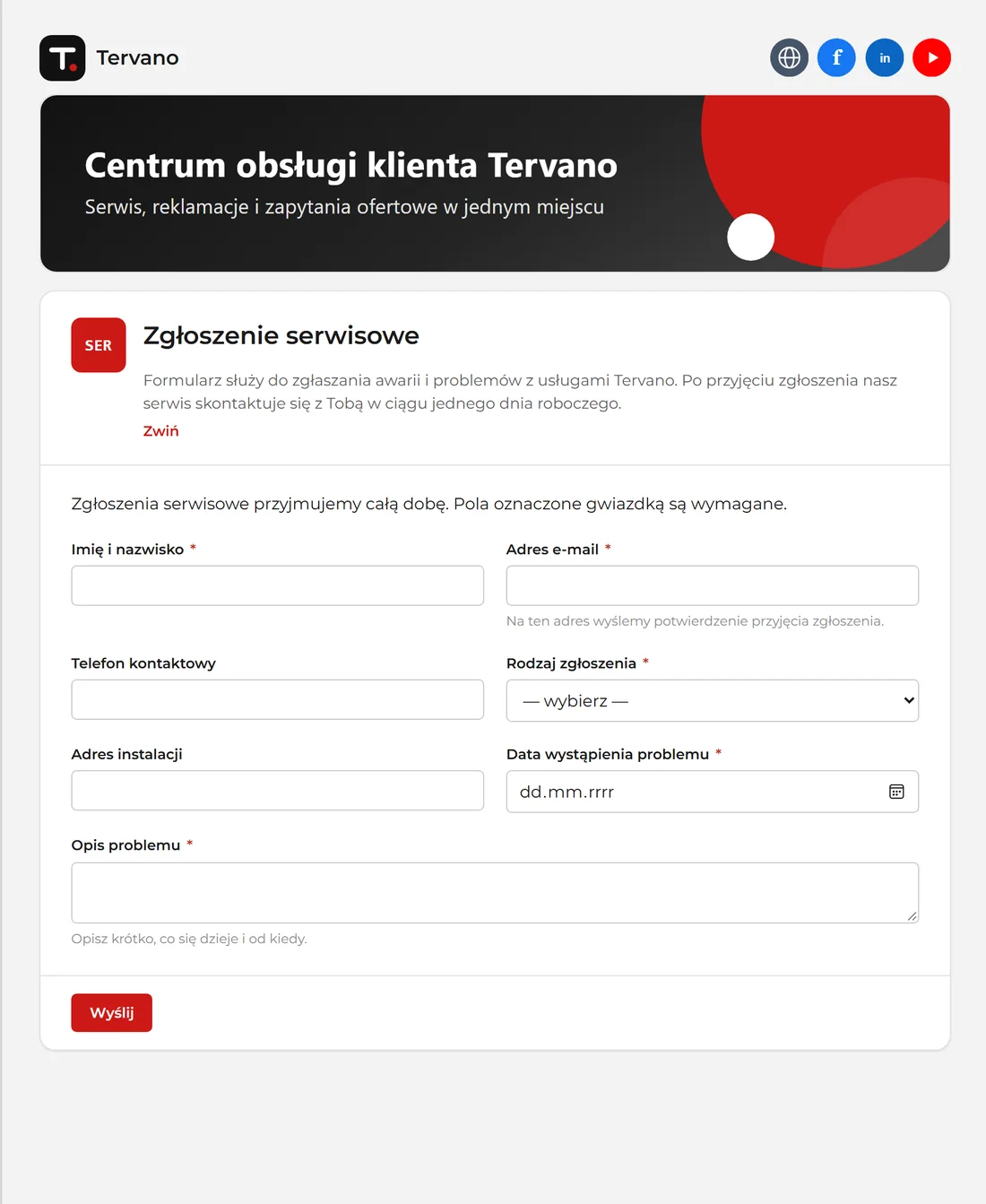
The logo, colors, banner, fonts, and menu create a public form page aligned with the company's visual identity.
How a form reaches an AMODIT process
- Upload the process definition. A file exported from AMODIT allows the portal to identify the stages, sections, and fields.
- Select the stage and arrange the form. The administrator selects the starting stage and drags the required fields into the layout.
- Preview and publish. The form starts in draft status. After the external view has been checked, it is published at its own address.
- Handle the case in AMODIT. Submitting the form creates a new case, and the outcome with the case number is stored in the submission history.
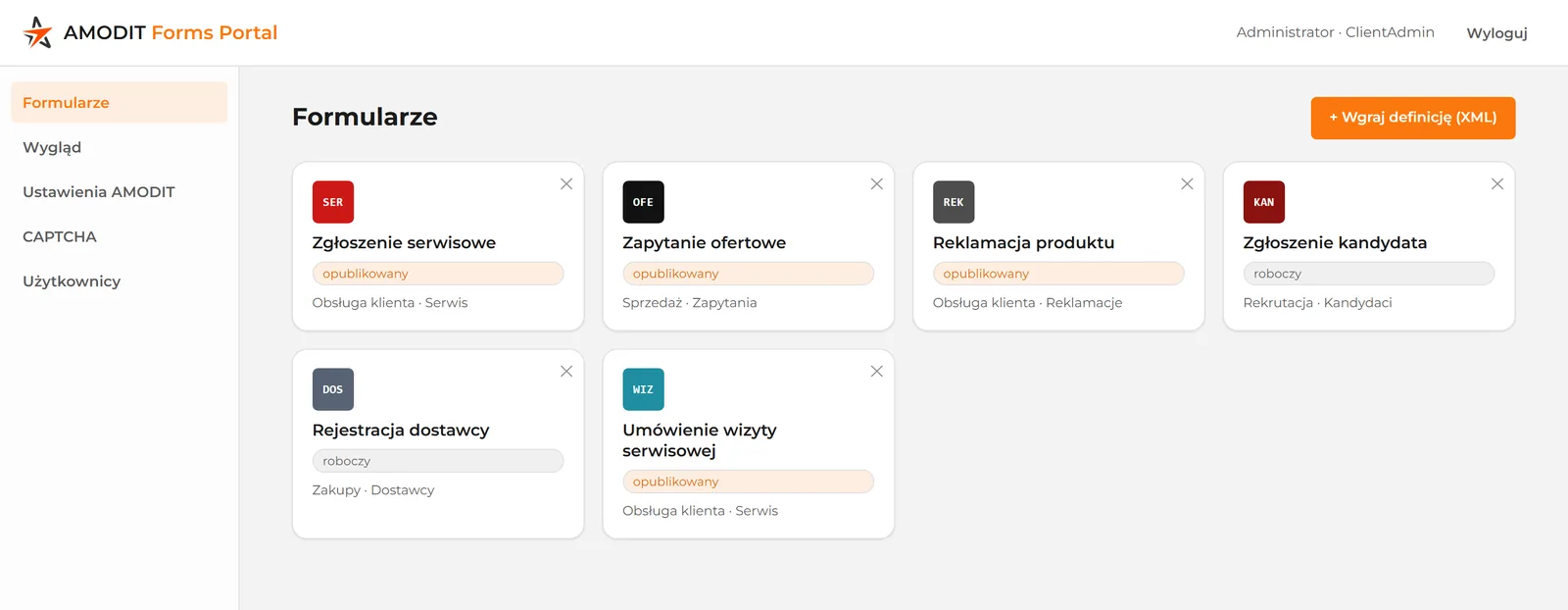
No-code form builder
The form is built in a browser. The administrator selects the starting stage, arranges fields in columns, and sets their names, required status, editability, and validation. The main field types include text, numbers, dates, selection lists, a user field, and signature confirmation. Headings, guidance, and information clauses can also be added.
When an updated process definition is uploaded, the field list refreshes while the starting stage, layout, and labels remain unchanged. A preview of the external form is available before publication.
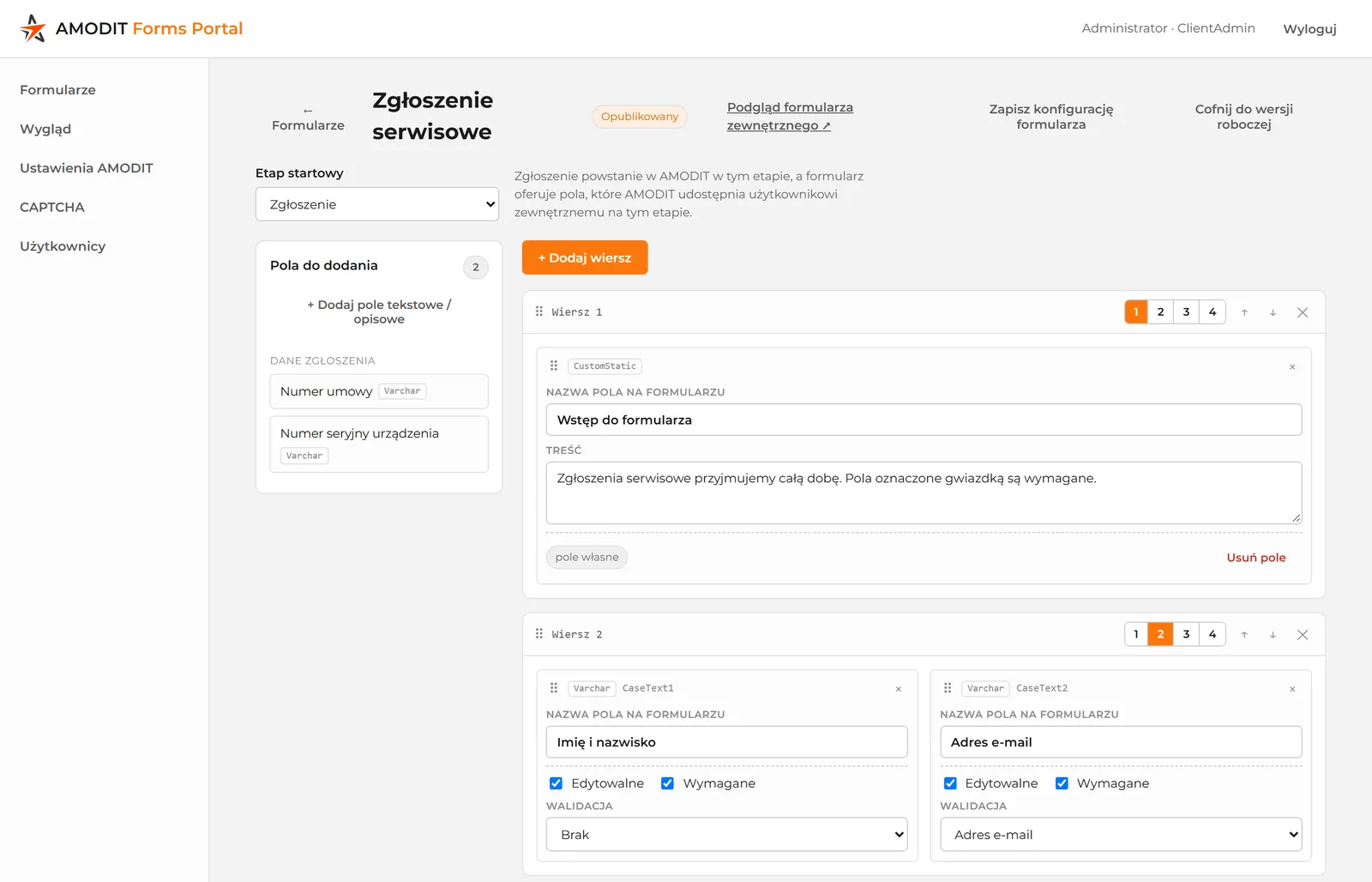
A form in the company’s brand
Appearance settings are shared by the forms in a given workspace. They cover the logo, banner, colors, fonts, page width, and a menu of published forms. The title, process description, and submit button can be adapted to the company’s communication style. Custom CSS is available for more demanding projects.
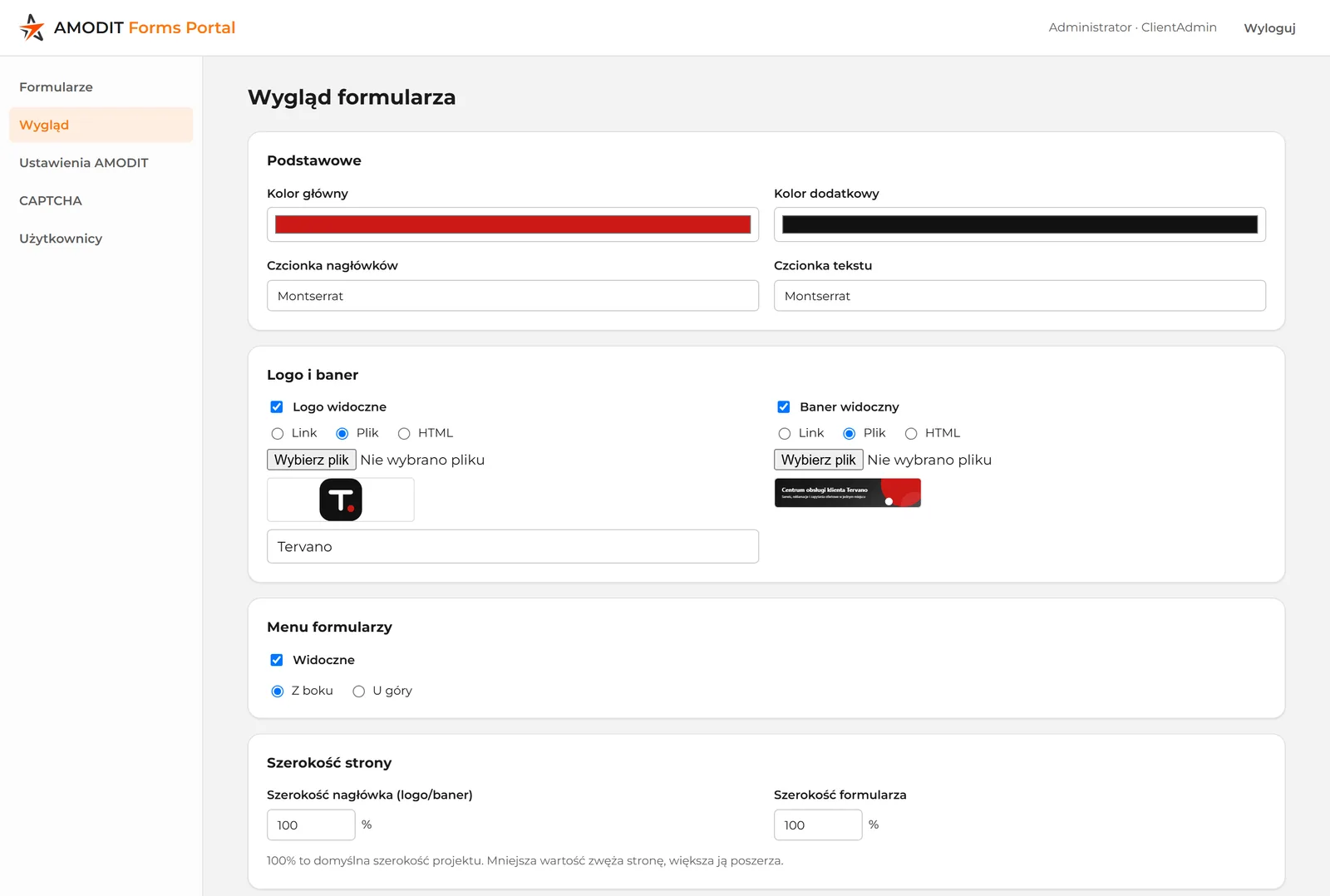
Security and submission control
- Data limited to the form. Fields hidden from an external user do not leave the server.
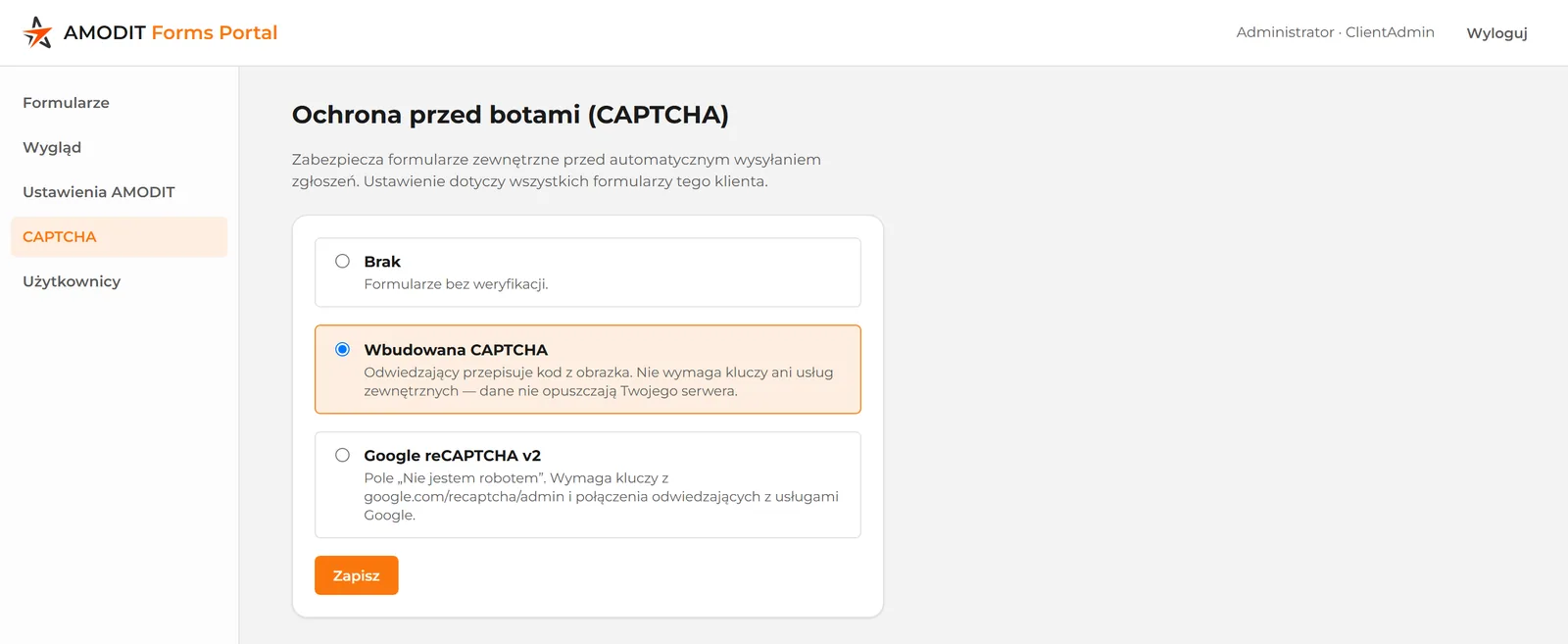
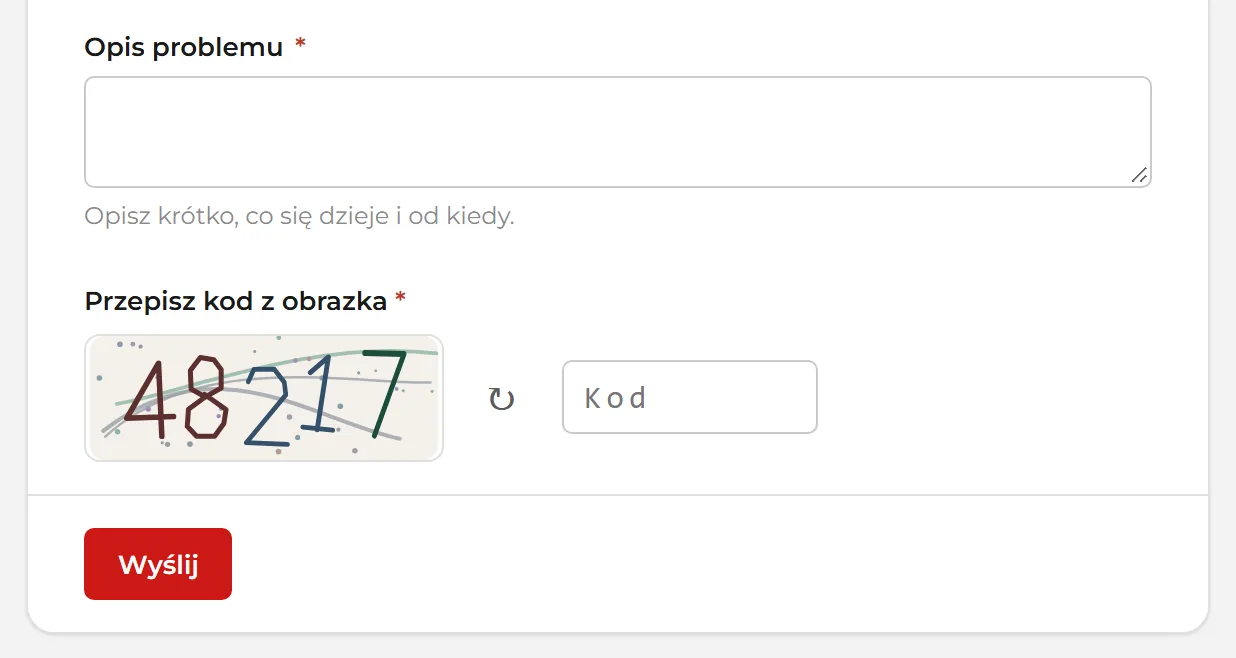
- Bot protection. The administrator chooses either the built-in CAPTCHA with a single-use image code or Google reCAPTCHA v2.
- Submission history. Every submission attempt stores the outcome—success or error—and the number of the case created in AMODIT.
No analysis, programming, or separate implementation project
The form is generated from the definition of an existing AMODIT process, so it does not require separate field analysis or coding. Its layout, content, and appearance are configured in a browser. Launching it does, however, require configured access to the AMODIT API on the client’s side.
For AMODIT clients and implementation partners
AMODIT Forms Portal works only with AMODIT. It is intended for organizations that receive cases from people outside the system and for partners implementing AMODIT for their clients. Its most common uses include service requests, complaints, requests for proposals, recruitment, supplier registration, and appointment scheduling. The full list appears in the use cases.
In an environment serving several clients or branches, each organization receives a separate workspace with its own form address, appearance, AMODIT connection, and administrator team.
Astrafox implements and integrates AMODIT, organizes sales, orders, and customer service processes, and develops its own product portfolio.
Use cases
Any AMODIT process initiated by someone outside the system—a customer, candidate, supplier, or visitor—can have its own external form.
Customer service and support
- service request or equipment or service failure report
- service technician appointment
- warranty defect report
- product registration and warranty extension
- satisfaction survey and post-sale feedback (NPS)
- problem accessing a service, Internet connection, application, or platform
Complaints and returns
- product or service complaint
- product return request
- damaged shipment or transportation claim
- delivery discrepancy report
- compensation or damages request
Sales and marketing
- B2B request for proposal and custom quote
- product inquiry and demo request
- booking a sales consultation
- partner or distributor application
- registration for a webinar, event, or product training
- contest entry form
- marketing consent with communication preferences
Recruitment and HR
- job application with a résumé and contact details
- internship or work placement application
- employee referral program submission
- candidate survey after an interview
- preboarding form with a new employee's data
- B2B contractor or contract-work application
Purchasing, suppliers, and partners
- new supplier or contractor registration
- supplier qualification questionnaire covering quality and compliance
- offer from a prospective supplier
- supplier complaint
- invoice or settlement submission by a contractor
- subcontractor registration request
IT and security
- security incident report from an external person
- vulnerability report under responsible disclosure
Administration, facilities, and events
- visitor registration and visit notification
- guest pass or access card request
- building failure report for an elevator, heating, or other installation
- room or space reservation by an external tenant
- event, trade show, or conference registration
- catering or event service order
Finance, legal, and compliance
- insurance claim
- credit note request
- GDPR breach report or personal data access request
- whistleblower report
- preliminary loan or lease application
- grant or funding application
Healthcare, education, and real estate
- patient registration and appointment scheduling
- pre-appointment medical questionnaire
- course, training, or class registration
- school or preschool application
- property sale or rental listing and viewing appointment
- defect report for a newly completed apartment
Manufacturing, construction, transportation, and the public sector
- failure or issue report by a contractor at a plant
- occupational health and safety incident report by an external person, for example at a construction site
- damage to company property report
- construction work acceptance complaint
- vehicle damage report for a fleet or leased vehicle
- request or intervention submitted to a public authority or entity
All these situations start in the same way: someone outside AMODIT provides data that initiates a process in the organization. A good first form replaces submissions currently collected by email, phone, or spreadsheet.
Frequently asked questions
Does AMODIT itself publish forms on the Internet?
No. AMODIT itself does not allow a form to be published on the Internet or its appearance to be customized. AMODIT Forms Portal adds a public form at its own address and in the company’s brand, then routes submitted data to an AMODIT process.
Does AMODIT Forms Portal work without AMODIT?
No. The module is designed for AMODIT clients and does not work without AMODIT.
What is needed to connect a form to a process?
Configured access to the AMODIT API is required on the client’s side. The process definition is then uploaded to the portal, the starting stage is selected, and the form is arranged.
At what point in the process is a case created?
Each form creates a case at one selected starting stage of the process.
Can report and table fields be completed in the form?
No. Report and table fields retrieve data from AMODIT, so they serve an informational role in the external form.
How do the user field and signature confirmation work?
The user field is a standard field for entering a full name. Signature confirmation means selecting a checkbox and is not a qualified electronic signature.
How does the form protect itself against bots?
The built-in CAPTCHA provides basic protection against simple bots, but it has no audio option and does not stop image-recognition software. Google reCAPTCHA v2 is available for forms more exposed to attacks.